The desktop app
Searching, capture, archives, the case view, connections, the Search Lab and every shortcut.
On this page
Search engines, a capture-enabled browser, your live investigation and an AI agent terminal in one window, on macOS, Windows and Linux. The app runs the HVNT33 server and its ArcadeDB database itself (both built in); there is nothing else to install.
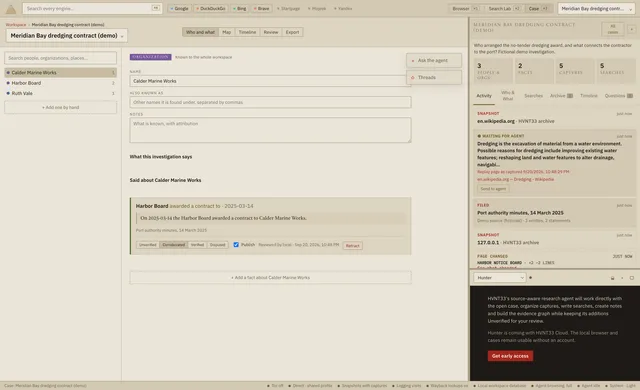
The page as data docks left of the page: drag its edge to resize it, or fold it away with « (and back with » or ⌘4). The agent terminal sits under the case: drag its top edge to resize it (double-click to maximize), minimize it to its header, maximize it over the right column, or move it across the bottom of the window (⬓). ⌘J focuses it (and restores it when minimized). Moving or resizing it never interrupts the agent.
Run it§
From source (Node.js 22.18+; Claude Code or Codex for the agent terminal):
npm install          # at the repository root (npm workspaces)
npm run setup        # .env, the built-in database and Tor (checksum-verified)
npm run desktop      # builds and opens the app
npm run package      # an installer for this platform in apps/desktop/release
At launch the app checks the HVNT33 server (.env PORT, default 4310). If it is not running, the app starts it (the server starts the built-in database), and stops both when you quit. A server you started yourself with npm start keeps running and is used as is.
An installed app carries the server, the database (ArcadeDB on a Java runtime) and Tor inside it, and keeps its research in its data folder. Its agent terminal works in the app's own workspace (the agent's instructions, skills and a hvnt33-research command); choose a checkout of HVNT33 instead to work in the repository and its data/.
Working in it§
| Keys | Action |
|---|---|
| ⌘K | Search every selected engine; one tab per engine |
| ⌘⇧S | Capture the highlighted text, or the image under the pointer |
| ⌘⇧P | Capture the whole page's readable text |
| ⌘⇧A | Capture the highlighted text and send it to the agent in one keystroke |
| ⌘⇧4 | Photograph this page and put it in the agent's message |
| ⌘⇧5 | Photograph this page and send it to the agent |
| ⌘⇧R | Record the current results page again |
| ⌘⇧B | Let the agent browse this case (on and off) |
| ⌘1 / ⌘2 | Browser / Search Lab |
| ⌘3 / ⌘4 | Case / page data and browser history |
| ⌘J | Focus the agent terminal |
| ⌘T ⌘W ⌘L ⌘[ ⌘] ⌘R | New tab, close tab, address bar, back, forward, reload |
Searching. Toggle engines in the top bar. Google, DuckDuckGo, Bing and Brave are selected initially. Google may challenge repeated searches and shared VPN or Tor exits; complete its check in the page or turn it off for that search. When a results page loads, the app reads the results that page shows and records them for the current case as a SearchRun in ArcadeDB: engine, query, time, rank, title, URL and snippet. It records what you were shown, not an engine's whole index. Consent pages and bot checks are reported and never bypassed. After you complete one in the tab, the reload is recorded.
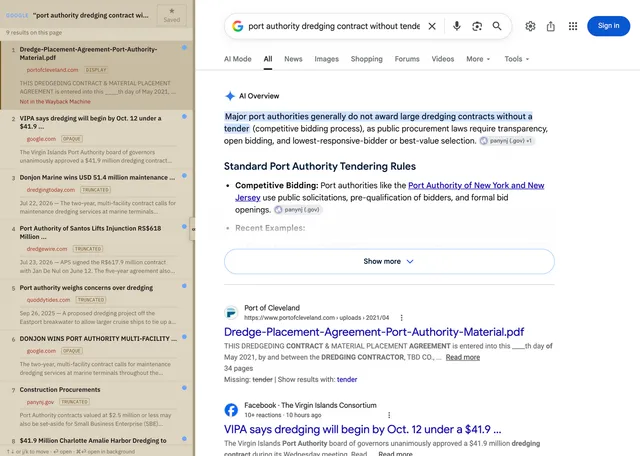
Google now links results through opaque redirects. For those results the URL is rebuilt from the address Google displays and labelled display, truncated (path shortened by Google) or opaque (unknown). They still open through Google's link.
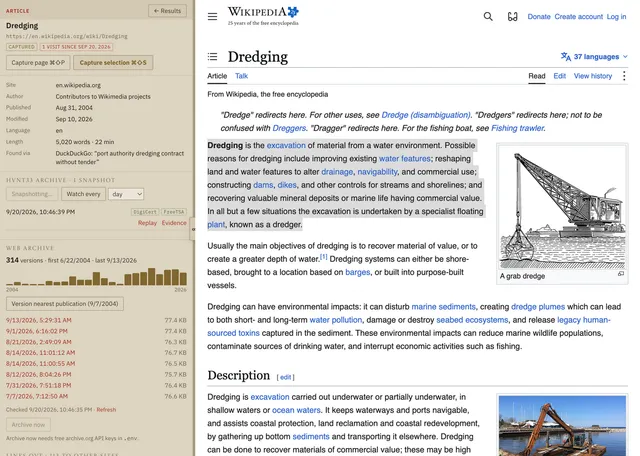
The page as data (⌘4). A panel docks left of every page.
- On a results page it lists the results as rows: rank, title, domain, snippet, URL quality, which other engines returned the same URL (hover the dots for their ranks), and whether the case has already captured, cited or visited it. Move with ↑↓ or j/k; ⏎ opens a result in a new tab, ⌘⏎ opens it in the background. ☆ saves the query to the case.
- On any other page it shows what the page declares: type, site, author, published and modified dates, canonical URL, language, length, the search and rank that led you there, and the sites it links to most. "← Results" returns to the results page.
Web archive. The page details panel shows what the Wayback Machine holds for the page:
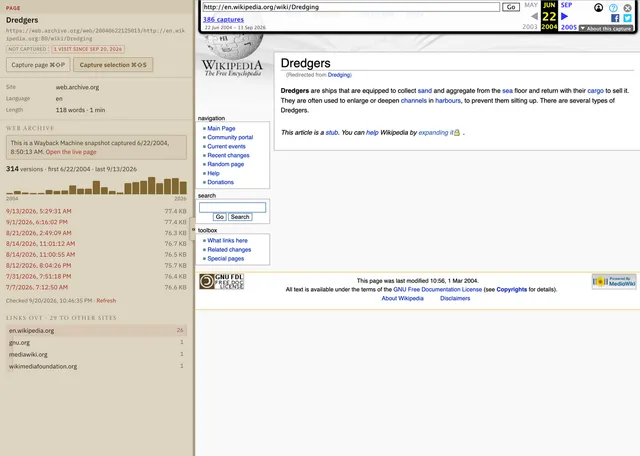
- how many distinct versions it has, with first and last capture dates and a per-year chart;
- the latest captures, each opening as a tab;
- a jump to the version nearest the page's declared publication date.
On a results page, the selected result shows a one-line archive summary. Opening a snapshot (web.archive.org/web/<time>/<url>) is recognized: the panel names the capture date and links back to the live page.
Archive now asks the Wayback Machine to capture the current page. Turn on "Wayback saves with captures" in the status bar to archive whatever you capture; the snapshot link is stored on the capture. Save Page Now needs a free archive.org account. Add its keys to .env (from https://archive.org/account/s3.php) and restart the server:
ARCHIVE_ORG_ACCESS_KEY=...
ARCHIVE_ORG_SECRET_KEY=...
Archive jobs run in the background, paced and retried when the archive is busy, and appear in Activity. Lookups send the page's URL to the Internet Archive; switch them to on-request with "Wayback lookups" in the status bar. History is cached for 12 hours per URL.
Your own archive. The panel's HVNT33 archive section keeps the case's own copies of a page:
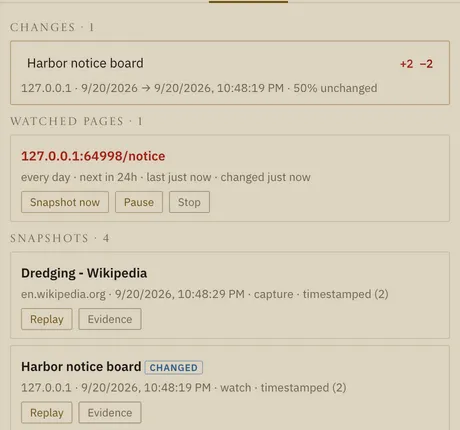
- Snapshot now stores the page as a replayable web archive (WACZ), its text and a screenshot, and has two independent timestamp authorities (DigiCert and FreeTSA) sign a manifest of their hashes. Each snapshot is listed with its timestamp badges.
- Replay opens the archived page in a tab, as it was captured. Evidence saves a package to
~/Downloads(archive, text, screenshot, manifest, timestamp tokens, checksums andVERIFY.txt) that anyone can check withshasumandopenssl, without HVNT33. - Watch every 6 hours, a day or a week snapshots the page on a schedule. When its text changes, the change is recorded with the lines added and removed.
The investigation pane's Archive tab lists changes (unseen ones are counted on the tab) with the full diff and replays of the before and after snapshots, the watched pages (snapshot now, pause, stop) and every snapshot. "Snapshots with captures" (on by default, in the status bar) snapshots the page a capture came from and links the two. Snapshots are made by the app's own browser: a hidden window loads the page in a fresh session (no cookies or sign-ins), through the case's route, and records every response (the document, scripts, styles and images), scrolls through the page so lazy content loads, then takes the screenshot and the rendered text.
Letting the agent browse. The agent can work the browser with you: open pages, search every selected engine, read a page as data, click, type, scroll and capture what matters. It goes through the same paths your own keys do, so its searches are recorded as search runs, its page opens as visits and its captures as intakes, in this case's profile and route, with the same provenance, marked as the agent's and left Unverified for you.
Each case carries its own setting, remembered between sessions and shown in the status bar: full (new cases start here), gathering and off. Click the status bar to cycle; ⌘⇧B switches between off and full.
Gathering is the middle setting, and the line it draws is retrieving versus acting. The agent may open pages, search, follow links, paginate, scroll, read and capture: everything that fetches, and all of it undone by going back. It may not press a control, type, or send a key, because those can submit, post or buy. A click on a link goes through; a click on a button is refused and the agent tells you what it wanted.
While the agent may browse:
- a bar above the tabs names what the agent is doing, and Stop takes the wheel back at any moment;
- tabs the agent opened are marked with ◆, so a page on screen is never mistaken for one you chose;
- the action list shows everything it has done in the browser.
If the agent asks for something the level does not allow, a bar offers it to you in one click, so a refusal is never a dead end.
The browser is HVNT33's own. Only the agent in this app's terminal can drive it: the app makes a key each launch and gives it to that terminal and nowhere else. An agent you connect from another program over MCP keeps every case tool (cases, records, relationships, notes) and gets no browser, so what happens in your window stays driven from your window. (The key separates programs on your machine; it is not a defence against a machine already compromised.)
Two limits hold at every level: HVNT33 never lets the agent type into a password or one-time-code field (you sign in yourself), and a paused case loads nothing, for the agent as for you. Page content the agent reads is material to record, never an instruction it follows.
Photographing a page. ⌘⇧4 saves the page as displayed as an image capture and puts it in the agent's message; ⌘⇧5 sends it straight away. Use it for what only the rendering carries: a chart, a map, a layout. ⌘⇧A does the same for highlighted text, skipping the note step when you just want the agent to look at something now.
Local or hosted server. By default the app uses the local server in this workspace. File › Connect to Server… (⌘⇧,) switches to a hosted HVNT33: enter its https:// address and an API token. The app checks the server and token before saving. The token is stored encrypted by the operating system (Keychain, Windows DPAPI or the Linux keyring) and added to requests by the native side, so page scripts and the app's web content never see it. The status bar shows which server is in use.
The case (⌘3). Where you review and edit what was filed:
- Who and what: the people, organizations, places and events this investigation knows, each one the workspace's own, so the same person researched in another case is the same entry, not a second copy. Open one to see every statement about it, the verbatim quote behind each, and the source it cites. Set what this investigation makes of a statement (Unverified, Corroborated, Verified, Disputed) and whether to publish it; that assessment is this investigation's and does not follow the fact elsewhere. Statements are never edited: retract one with a reason and assert the corrected version.
- Reviews are recorded. Setting a status or pressing Mark reviewed records who reviewed the record or connection and when, apart from agent filing. The Search Lab can query it:
filed_by=agent reviewed=false. - Map: the connection graph; drag records to arrange it (the arrangement is kept per case), click one to open it, and Download SVG for reports and slides. Dashed lines are connections not yet verified or corroborated.
- Timeline: dated records by year.
- Review: what the agent filed that nobody has checked, and every capture and what became of it. A staged capture waits here: tick the entities and statements to keep, reuse a person the workspace already knows rather than creating a second one, then File what is ticked or Reject.
- Export: choose the records for a presentation and save it as a ZIP (offline HTML dossier, map SVG, CSV and JSON, originals), or export the entire case.
The case pane's record list has Review in case ⌘3 on each record.
Connection per case. The status bar shows where the case appears to browse from (e.g. "Exit: Sweden · M247") and a Tor on / Tor off switch.
- Tor, in one click, built in. Click Tor off to send the case through Tor. HVNT33 includes the Tor Project's own tor on macOS, Windows (x86_64) and Linux (x86_64), inside the installed app or installed and checksum-verified by
npm run setup: it starts when you turn Tor on for a case (the button shows its progress; a few seconds, longer the first time) and stops when no case uses it. A Tor Browser or tor service you already run is used when built-in Tor isn't installed. Each case gets its own Tor circuit, so two cases on Tor leave from different exits and can't be tied together by IP. New exit (in the connection panel) moves the case to a fresh circuit; its pages reload, and its cookies stay. - A proxy. A VPN provider's SOCKS5 proxy (for example Mullvad's per-server proxies, reachable while its app is connected: one case in Stockholm, another in New York), a paid proxy, or your own
socks5://orhttp://proxy. Proxies that need a username and password (NordVPN, Surfshark, PIA, residential proxies) work too: the login is kept on this Mac only, in a private file, never in the case, exports or backups, and a local relay adds it, so the browser never holds it. - Direct: this Mac's connection, including any VPN app you run.
Each route has its own cookie jar within the case: turning Tor on starts from different cookies than direct browsing, so cookies can't link the two identities; turning it off returns to the direct jar. Clear Browsing Data clears all of a case's jars.
A route covers everything the case sends out, not only its tabs: its snapshots and watches are captured through it, and its Wayback lookups too. Proxies resolve hostnames themselves, so DNS goes through the route. A routed case always uses its own browser profile. If the route is down, nothing falls back to your direct connection: the case pauses.
Lock to this exit pauses the case whenever its exit leaves that country or network (for example when your VPN drops): its tabs close, nothing loads and no snapshot is taken until the check passes, and then its tabs come back. The exit is checked (through the route) when you switch to the case, every minute, and before any of its tabs load. Snapshots record the route and exit they were taken through (country and network, never the IP address). Pages never get WebRTC, which could reveal your real IP address past a proxy.
Limits: a route hides your IP address, not who you are. Logged-in accounts, browser fingerprints and your own habits can still identify you, and HVNT33 is not Tor Browser. Search engines show more bot checks to VPN and Tor traffic. Routes need a local server; with a hosted server, snapshots leave from its network. The exit check uses am.i.mullvad.net (HVNT33_EXIT_CHECK_URL changes it), which sees only a request from the route's exit.
Tabs and browser profiles. Each case keeps its own open tabs: switching cases swaps the tab set, and the app reopens the current case's tabs when it starts. Tabs keep cookies, logins and site data in a browser profile, as a browser does, so you stay signed in across restarts:
- Shared profile: one set of logins for every case that doesn't have its own.
- Own profile (the default for new cases): the case's logins and cookies are separate from every other case's, for example to use a dedicated research account. Sites can't link your activity across cases through cookies.
The status bar shows which profile the case uses; click it (or File › Clear Browsing Data…) to switch the case's profile or clear a profile's cookies, logins and site data. Clearing never touches your research. Replays of snapshots are not saved as tabs, since their links expire.
Visits. While a case is open, each page you load is logged to it as a PageVisit: URL, title, how you found it and the metadata above. It's browsing history, not evidence; capture a page to make it evidence. Turn logging off from the status bar ("Logging visits").
Saved searches. Save a query from the data panel. The investigation pane's Searches tab lists saved queries and your search history; Re-run on all engines runs a saved query again, and sourcetype=serp | changes in the Search Lab shows what moved.
Capturing. Highlight text, or point at an image, and press ⌘⇧S (⌘⇧P for the whole page). The capture is saved to the current case at once, and a reference to it appears in the agent's message at the bottom, for example [hvnt33 capture 015a…: selection from kkr.com]. Capture more to add them to the same message, type what you want ("connect these to the procurement thread"), and press Enter. The app saves an intake with:
- the exact selection (or page text, or image alt text and caption) as source text;
- the surrounding paragraph, page title, author, publish date, site name, canonical URL and the search that led there, as
captureMeta; - for images, the original file, downloaded and archived in
data/vault/with a SHA-256.
The agent reads each capture with npm run research -- show --intake ID and files it by the workspace's intake skill; new records appear in the Investigation pane as it files them. The message carries only IDs and sites: page content never passes through the terminal. If the agent isn't running, the capture waits in Activity with Send to agent. Each capture also takes a timestamped snapshot of its page ("Snapshots with captures" in the status bar), and, when archive.org keys are set, can ask the Wayback Machine to save it ("Wayback saves with captures", off by default, since it makes the address public).
Dropping files on the agent. Drag files from the Finder, the desktop or anywhere onto the terminal, or links and images from a page: their paths or addresses go into the agent's message, and Claude Code or Codex attaches or reads them. Drop material you want filed, and the agent files it into the case as any other source.
Threads. A case is a question; the questions it opens up are their own. Threads nests one inside the case (the 990 trace, the names on the buildings) to any depth. A thread is a lens on the same shared people and sources, not a copy of them, so nothing is moved and nothing is duplicated. How a case gets built. Not by filling in forms. Search with ⌘K, open what looks useful, highlight the part that matters and press ⌘⇧A, or photograph the page with ⌘⇧5. Say what you want done with it; the agent reads it, files the people and facts it names with the source it read them in, and leaves everything Unverified. You follow and check the result in the Case view. Ask the agent in the action rail does the same from inside a case, with suggestions for the usual moves: file what is waiting, find the gaps, show where the sources disagree.
Adding something by hand stays available (Add one by hand under the entity list, Add a fact on anyone's page) for what you know and the agent cannot read. A fact still says where it came from: a source, or a note explaining what you know and how. HVNT33 has no way to store an unsourced claim.
Agent choices. Hunter is the planned built-in Cloud research agent and its panel links to early access. Claude Code, Codex and the local shell remain available when installed. MCP provides a client configuration for the local workspace and tools to list and read cases, add notes, and create, edit or delete records and relationships. The MCP process is local stdio, carries no model, and requires the app to remain open.
Search Lab (⌘2). A Splunk-style query language over everything the case has collected: observed search results (sourcetype=serp), captures, entities (sourcetype=entity) and statements (sourcetype=assertion).
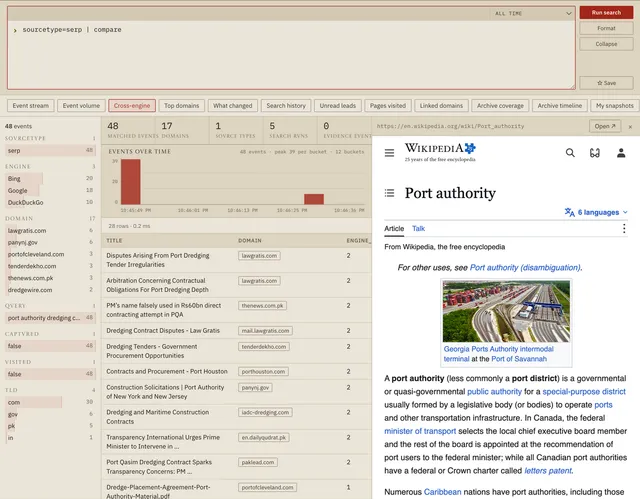
sourcetype=serp | compare                                   each URL's rank on each engine
sourcetype=serp | dedup url | top limit=20 domain            who dominates the results
sourcetype=serp | changes                                    new / dropped / moved since the last run
sourcetype=serp rank<=3 domain=*.gov NOT engine=bing
kind=Claim status!=Verified | table _time status title source
sourcetype=serp | stats count, dc(engine) as engines, values(engine) by domain | where engines>=3
Clicking a row opens its page in a preview pane beside the table; "Open ↗" moves it to the browser view. Saved queries (☆) are stored in the case. Observed results carry captured, in_records and visited fields, and pages you opened are sourcetype=visit events with author, published, site, page_type, words, links_out and linked_domains:
sourcetype=serp rank<=10 captured=false visited=false | dedup url     unread leads
sourcetype=visit | stats count by linked_domains | sort -count        who the pages you read cite
sourcetype=snapshot archive=wayback | stats count as versions, min(_time) as first by url   archive coverage
sourcetype=visit wayback_versions<3                                    pages barely archived: preserve them
sourcetype=snapshot archive=hvnt33 | table _time domain changed timestamps tsa     your own snapshots
sourcetype=change removed_text="*treasurer*" | table _time domain added removed   what a page stopped saying
Search terms, "phrases", field=value with * wildcards, !=, <, <=, >, >=, AND/OR/NOT and parentheses. Commands: search, where, dedup, sort [-]field, head, tail, table, fields, rename x as y, stats count|dc|values|min|max|avg|sum|first|last|earliest|latest (field) [as name] by …, top, rare, compare, changes. Click a facet to filter; ⌥-click excludes.
Security model§
Web pages are untrusted, and they never share a channel with the terminal or the file system.
- Each tab is a sandboxed view (Chromium's sandbox, context isolation, no Node) in its case's own session. Its preload exposes nothing: it only installs the page scripts. The native side answers commands only from the app's own view, loaded from its own
app://scheme under a strict Content Security Policy. The end-to-end test confirms, from inside a live page, that no bridge or Node is reachable. - The app reads pages only through the bundled read-only scripts in
packages/ui/page-scripts/, receiving their JSON result. After a page loads it reads the results list (results pages) or declared metadata and link counts (other pages); page text and selections are read only when you capture. - Tabs can only navigate to
http(s),blob:andabout:blank. Popups become tabs. Pages get no camera, microphone, location, notification or device access. Downloads go to Downloads without overwriting. - A paused case's sessions refuse every request before it leaves the computer, not only navigations. Routed sessions send loopback traffic through the route too; WebRTC is removed from pages and limited to proxied connections; DNS prefetching is off.
- The agent terminal runs an allowlisted command (Claude Code, Codex or your login shell) in the workspace. The UI cannot choose the command or directory. After a capture, it types only IDs and a sanitized case title.
- Server requests go through the main process, confined to
/api/paths on the configured server, via the typed client generated from the server's OpenAPI contract. The API token (hosted servers) is kept encrypted by the operating system and added natively; remote servers must use HTTPS. - Replayed snapshots run archived scripts, so they are served from the server's separate replay origin, which has no API; the main origin refuses API requests from other sites' pages. The end-to-end test probes both from inside a replay.
- Installed apps never fall back to the build machine's repository.
- Packaged apps flip Electron's security fuses before signing: cookies are encrypted with the operating system's credential store;
ELECTRON_RUN_AS_NODE,NODE_OPTIONS, inspector arguments and file-protocol privileges are disabled; and the app must load from its integrity-checked ASAR.
Verify§
npm run verify    # from the repo root: typecheck, unit tests (server, core, interface, app), the app build
npm run e2e       # live end-to-end session (opens a window for ~3 min)
npm run e2e -- --screenshots ./shots    # also screenshot key UI states
npm run e2e builds the app and launches it with its own settings folder; the app starts its server with a built-in database in a temporary folder, exactly as it does for a researcher, and runs a scripted session:
- fan-out search on live Google, DuckDuckGo, Bing and Brave;
- recording of observed results;
- selection, image (with archived original) and whole-page captures;
- (
npm run e2e -- --real-tor, on demand) the built-in Tor on the real Tor network: a case's tab opens check.torproject.org and is told it uses Tor; - a proxy that needs a login (a wrong password pauses the case; the right one is added by the local relay), and Tor in one click on the case's own circuit, with New exit moving it to a new one, all checked in the proxies' logs;
- a case route through a logging SOCKS5 proxy: tabs, a snapshot and archive lookups go through it with hostnames resolved by the proxy, WebRTC is absent (also in frames the page creates), a lock to another country pauses the case and blocks new tabs, unlocking restores its tabs, and a dead proxy pauses it rather than going direct;
- case profiles: a cookie set in one case is invisible in another, switching back restores the case's tabs still signed in, clearing the profile signs it out, and after relaunching the app the tabs and sign-in are back;
- the data panel's live results, page details on a real article, and the visit logged with how it was found;
- Wayback Machine history of the article, opening its oldest snapshot, archive events in the Search Lab, and "Archive now" (a real capture when archive.org keys are configured; otherwise the explanation is checked);
- a snapshot of the article in the app's browser (every response, screenshot) with two timestamps, its replay in a tab, a probe that the replayed page cannot read the API, the evidence package saved to Downloads and verified with
shasumandopenssl ts -verify(then deleted), and a watched local page whose change is recorded with a diff; - provenance checks, result cross-references (captured, visited), saved-search re-runs, Search Lab queries and preview;
- isolation probes from inside a live page.
Its server and database keep files in a temporary directory, and the app uses throwaway browser sessions and storage, so a test run never reads or changes your own logins, cookies or settings. It then deletes only the case it created. Engines sometimes rate-limit repeated automated runs with a bot check; the test reports that engine as skipped rather than failing.
Layout§
| Path | What |
|---|---|
src/main/main.ts |
App lifecycle, window, the app:// scheme, menus |
src/main/browser.ts |
Tabs as sandboxed views, sessions per case and route, kill switch, navigation policy, page scripts, exit check |
src/main/capture.ts |
Snapshots in a hidden window, recorded over the DevTools protocol |
src/main/server.ts |
Server bridge, capture upload (images through the tab's session), starting the server |
src/main/workspace.ts |
Where the agent works: a repository, or the installed app's own workspace |
src/main/pty.ts |
Agent terminal (node-pty) |
src/main/policy.ts |
The rules above as pure functions, unit-tested (tests/policy.test.ts) |
src/preload/ |
The app view's bridge; the tabs' page-script installer |
packages/ui/ |
The interface (React) and the in-page scripts, shared |
packages/core/src/ |
Query language, engines, results-page recognition, URL normalization, shared |
scripts/build.ts, scripts/package.ts |
Build; installers with the server, database and Tor inside |
packages/ui/src/e2e.ts, scripts/e2e.mjs |
End-to-end harness (development runs with HVNT33_E2E=1 only) |